Import and cull
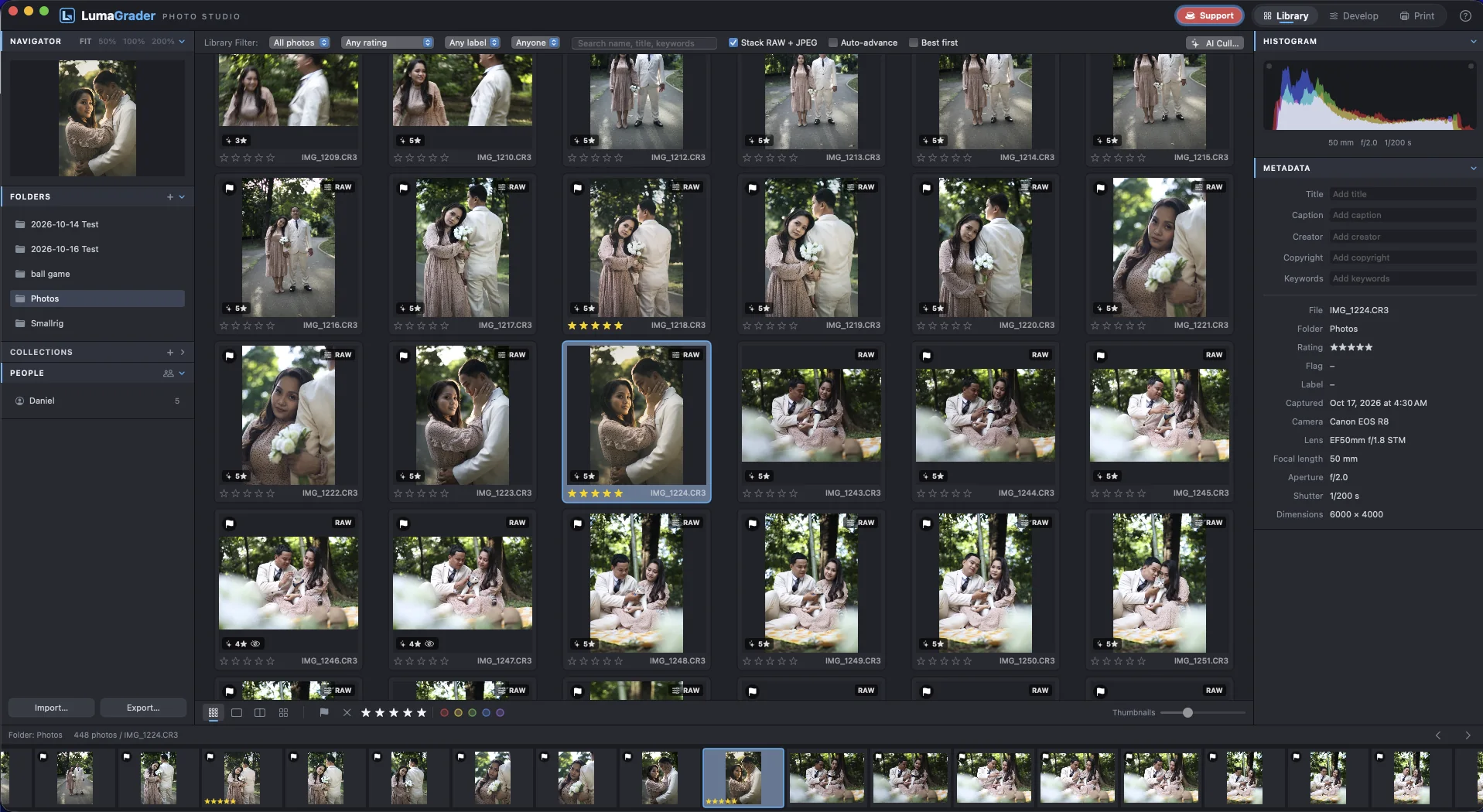
Bring a whole shoot in from the card, then get to the keepers fast: ratings from the keyboard, side-by-side comparisons, focus checks and an AI pass that runs on your own Mac.
Import from a card
Copy photos from your camera card into a dated shoot folder, renamed and backed up in one go.
- Insert the card and choose File › Import Photos.
- Pick the main folder and type a shoot name, like “Santos Wedding”. Photos go into Year › Date + shoot name.
- Choose a naming pattern, a backup copy on another drive, a develop preset and your copyright.
- Click Import. Photos you already imported are skipped.
Photos already on a drive? File › Add Folder Without Copying leaves them where they are.
- ⇧⌘I
- Import photos
Rate, flag and label
Mark the best shots without touching the mouse, then filter down to just those.
- Stars from 1 to 5, Pick and Reject flags, and colour labels.
- Works on one photo or a whole selection at once.
- The filter bar above the grid shows only picks, a star rating, a label or one person.
- 1–5
- Stars
- P / X / U
- Pick / Reject / Unflag
- 6–9
- Red, yellow, green, blue label
Compare and Survey
Choose the best frame of a burst by looking at the shots side by side.
- Survey shows every selected photo at once. Rate the active one, drop the rest.
- Compare puts your current favourite next to each candidate in turn.
- N
- Survey
- C
- Compare
Focus Check
See what is actually sharp before you pick. In-focus edges light up red, and one key jumps to 100% on the sharpest part of the frame.
- Focus peaking in Loupe, Compare and Survey, with adjustable sensitivity.
- Zoomed in, the check uses the full-size file, not the preview.
- ⇧F
- Focus peaking
- ⇧Z
- Zoom to the sharpest area
AI Cull
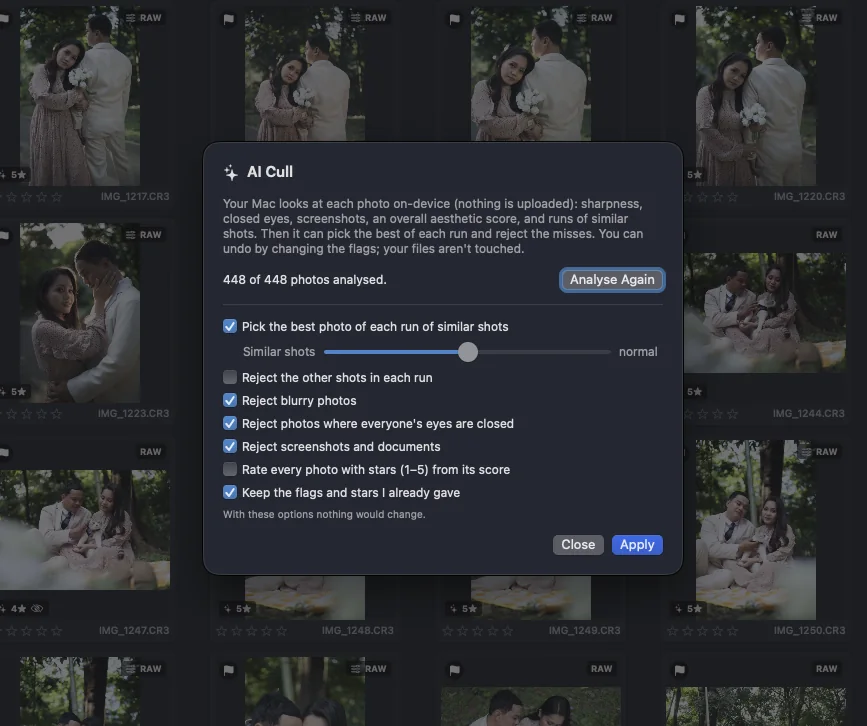
Let your Mac look for soft focus, closed eyes and runs of near-identical shots, then flag the best of each run. It all runs on-device with Apple’s Vision framework; nothing is uploaded.
- Choose what to flag: best of each burst, blurry shots, closed eyes.
- Every flag stays editable by hand.
People
Find the faces in a shoot, name them once, and show every photo of a person in one click. Useful for family portraits and for finding the couple in a wedding.
- Similar faces are grouped for you to confirm.
- Filter the grid by person.
Collections, virtual copies and auto-rotate
Group photos from different folders, and keep several edits of the same photo without copying the file.
- Virtual copies have their own edits; the original file is untouched.
- Portraits shot with the camera’s auto-rotate off are turned upright when you import them.
- ⌘’
- Create virtual copy
- ⌘[ / ⌘]
- Rotate left / right
Free for Mac. macOS 14 Sonoma or newer, Apple silicon or Intel.
Download for Mac